
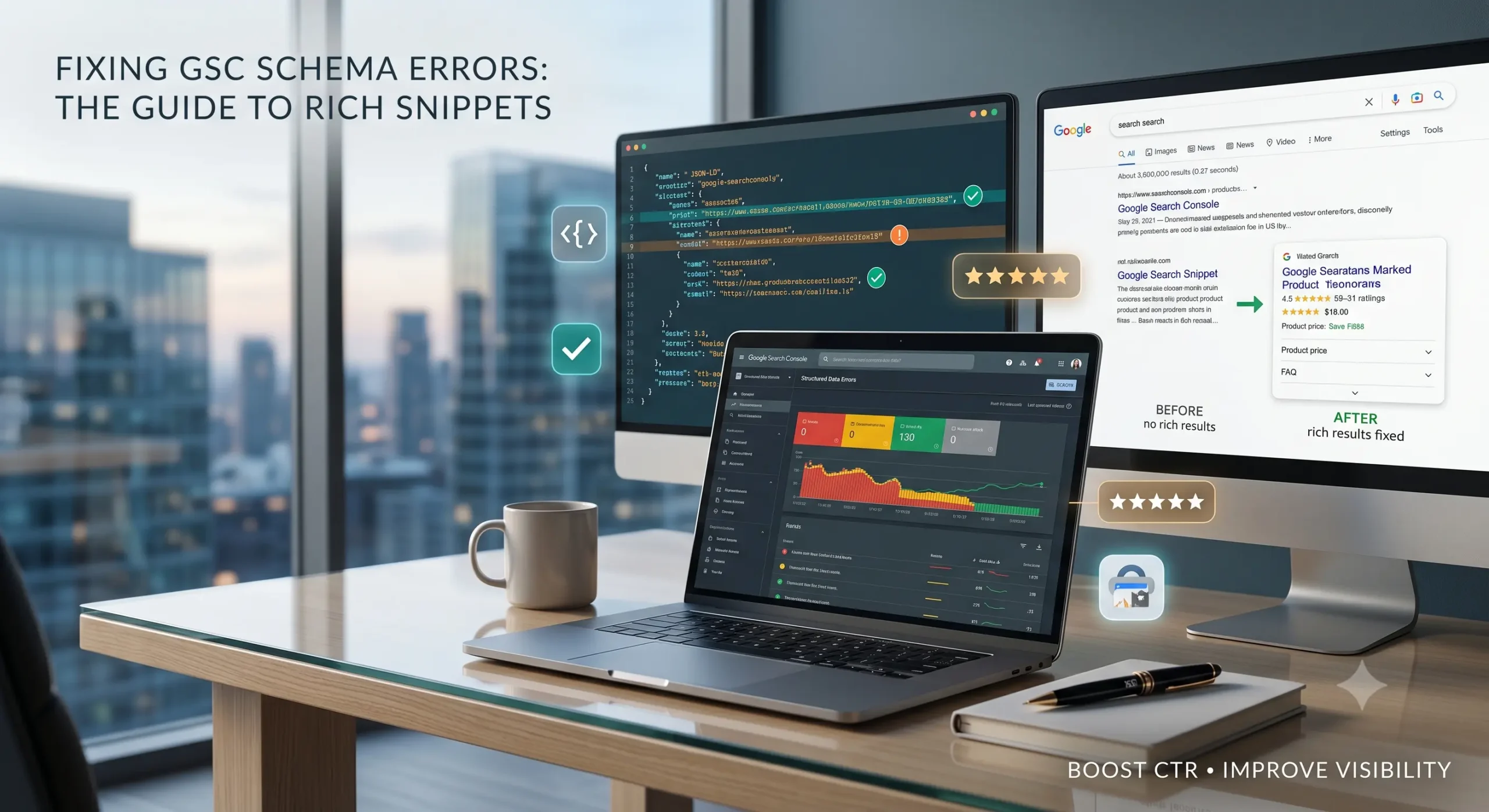
In modern SEO, standard visibility is no longer just about ranking in the top ten blue links. It is about commanding real estate. Structured data acts as a digital translator, passing explicit context directly to search engines so they can reward your site with star ratings, product prices, event dates, and FAQ dropdowns.
However, many webmasters treat Google Search Console (GSC) as a passive reporting dashboard. When Googlebot encounters broken syntax or missing parameters in your schema code, it doesn’t try to guess your intent. It simply disqualifies your page from rich results.
If your schema markup is broken, you are missing out on immense click-through rate (CTR) boosts while giving your competitors a free pass to dominate the search landscape. This step-by-step guide moves past basic definitions to address exactly how to diagnose, fix, and validate schema errors inside Google Search Console.
Step 1: Establish Your Diagnostics Engine
Before rewriting a single line of JSON-LD or adjusting your CMS settings, you must map your errors systematically.
Execution Steps
- Log into your Google Search Console Dashboard.
- Scroll down to the left-hand navigation menu and look under the Enhancements (or Shopping for e-commerce) tab. Here you will see individual reports for discovered schemas (e.g., Product snippets, Review snippets, FAQs).
- Click on any report displaying a red Error status.
- Look at the “Why items are invalid” table to isolate the exact programmatic cause behind the breakdown.
The Hidden Signal Most Skip
Do not just look at individual page instances. Check to see if an error trends identically across hundreds of URLs. If it does, you are not dealing with a manual typo; you have a site template or SEO plugin structural issue. Fixing the code at the template level will resolve the error globally across your entire site simultaneously.
Step 2: Identify and Address GSC Schema Errors Step-by-Step
Let’s break down the most common schema validation errors flagged by Google and address each with a direct technical solution.
1. Unparsable Structured Data (Invalid JSON-LD Syntax)
- The Diagnostic: Google found your schema code block but could not read it because the foundational formatting is fundamentally broken.
- The Behind-the-Scenes Cause: This is almost always caused by basic formatting typos—such as a missing comma between lines, unclosed curly brackets
}, or using curly quotes“ ”copied from a word processor instead of straight developer quotes" ". - The Solution: Run the page through Google’s Rich Results Test. Paste the code or URL to see exactly which line throws the syntax flag. Insert the missing comma or clean the quotation marks, ensuring your JSON-LD looks completely uniform.
- The Diagnostic: You have declared a schema type (like an
ArticleorProduct), but failed to supply a data field that Google deems mandatory for rich snippet eligibility. - The Behind-the-Scenes Cause: Custom post types or e-commerce variants frequently omit secondary variables in their backend fields. For instance, an article lacking an explicit author name or a product missing a defined price.
- The Solution: Open your CMS or schema generator. Map the missing field to your page content. If you are using an automation plugin, ensure that global fallback settings are checked so that the plugin dynamically pulls data (like using the site name if a specific article author is unassigned).
3. Invalid Object Type or Data Value Formats
- The Diagnostic: The field exists, but the data inside it uses a format the algorithm cannot interpret (e.g., “Invalid datetime value” or “Invalid price format”).
- The Behind-the-Scenes Cause: Inputting raw, casual text where a strict machine format is required. For instance, writing a price as
$49.99(including the currency symbol) instead of splitting it into a clean numeric value49.99and an independent currency propertyUSD. Another frequent culprit is using non-ISO standard date configurations. - The Solution: Format all dates strictly using the ISO 8601 layout (e.g.,
YYYY-MM-DD). Clean up price fields to feature raw numbers only, placing the three-letter currency code in its designated sub-property field.
4. Structured Data Content Mismatch (The Hidden Quality Trap)
- The Diagnostic: Google’s syntax checking tools say your code passes perfectly, yet you still receive an error or a sudden manual action warning.
- The Behind-the-Scenes Cause: Hidden Content. You have marked up structured data for reviews or answers that do not actually exist visibly on the human-facing page. Google explicitly forbids marking up content that is hidden from readers.
- The Solution: Audit your design layout. Every single piece of data fed to the JSON-LD script must be visually present and readable by a human visitor on that exact URL. If you list an FAQ in your schema, print those identical questions and answers directly into the visible body copy of the page.
Step 3: Trigger Re-Evaluation and Validate Your Fixes
Modifying your code or updating your plugins only completes half the loop. You must systematically signal Google to re-crawl the corrected pages and clear your error history.
- Return to the specific error sub-bucket inside your Page Indexing or Enhancements report.
- Click the grey Validate Fix button positioned clearly at the top of the details panel.
- This action alters the status flag to “Started” or “Pending,” prioritizing those specific assets in Googlebot’s upcoming crawl queues.
- Monitor the validation log over the next few days to ensure your pages transition smoothly into the green “Passed” category.
Summary
Fixing schema markup errors in Google Search Console requires moving away from visual guesswork toward strict data validation workflows. To secure premium rich snippets, you must eliminate syntax typos, ensure all required properties are comprehensively filled, and never hide schema-mapped data from the actual user experience. By setting up a consistent testing system with tools like the Schema Markup Validator and monitoring your GSC logs, you preserve your baseline technical optimization and win search market share.